
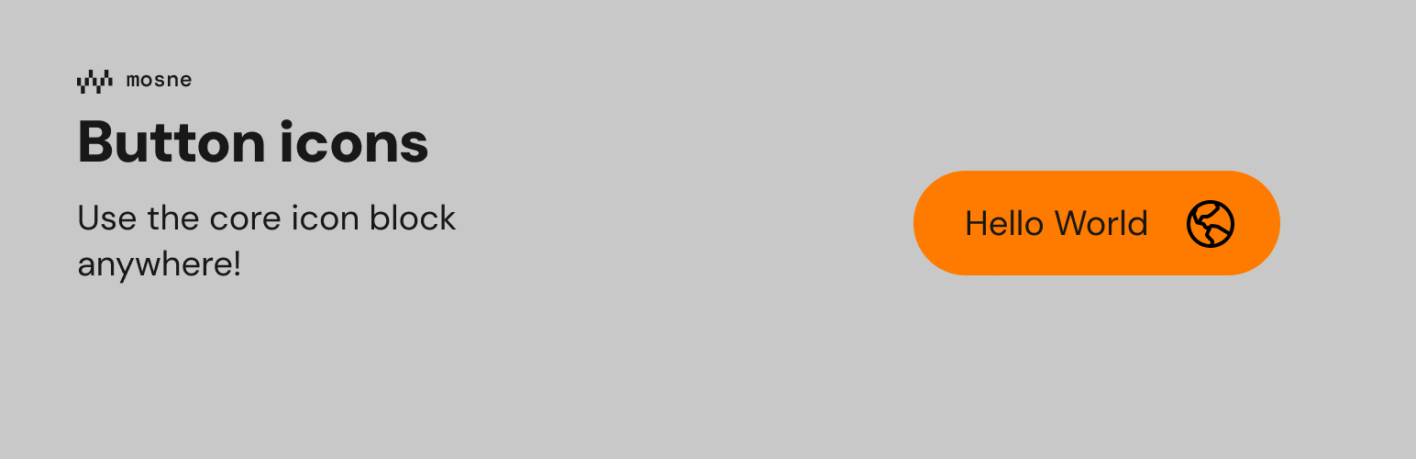
Sometimes a small missing feature in WordPress is enough to make you build a plugin. That was the case with Mosne Button Icons. The idea is simple: I wanted to be able to place an icon directly inside a piece of text in the WordPress block editor, without having to turn that icon into a separate block or rely on custom HTML. So I built a small plugin that adds inline icons to WordPress Rich Text.
The problem with icons in text
WordPress already has an Icon block, and there are many plugins that provide icon libraries. But an icon block is not always what you need.
Insert icons directly from the block editor
After installing the plugin, an Inline icon format becomes available in the block editor’s Rich Text toolbar. Place your cursor inside a paragraph, heading, button, list, or another Rich Text field, choose the inline icon format, and select an icon. The important part is that the icon remains inline with the text. There is no need to create an additional block just to display a small icon.
It uses the WordPress Icons API
One of the main reasons I built the plugin this way is that I didn’t want to create another completely separate icon system. Mosne Button Icons uses the WordPress Icons API, the same API used by the core/icon block. This means the plugin can work with icon collections registered by WordPress themes and plugins through the Icons API. The plugin also includes an optional Phosphor Icons collection, enabled by default. The collection can be enabled or disabled from the plugin settings. This makes the plugin more flexible than simply shipping one fixed collection of SVG files.
Icons inherit the surrounding text color
Another small but important detail is how the icons are rendered on the front end. The plugin stores the icon name rather than simply inserting a standalone SVG into the content. On the front end, WordPress uses wp_get_icon() to render the icon.
As a result, the SVG can inherit the surrounding text color. For example, if your button text is blue, the inline icon can follow that same color instead of requiring a separate color configuration. This also makes the icons fit more naturally into existing WordPress styles.
It works beyond paragraphs
Although paragraphs are an obvious use case, Rich Text is used in many places throughout the block editor. Mosne Button Icons is designed to work wherever WordPress supports Rich Text formats, including:
- Paragraphs
- Headings
- Buttons
- Lists
- Other Rich Text fields
This makes the feature useful for small interface details without introducing another block into the page structure.
Accessibility is part of the implementation
Inline decorative graphics shouldn’t automatically become noise for screen readers. The plugin supports accessible labels through alt / aria-label. When no label is provided, the icon can be treated as decorative. The goal is therefore not just to make icons appear visually, but to integrate them into the content in a way that respects the semantics of the surrounding interface.
Built with extensibility in mind
The plugin isn’t limited to the icon collection that ships with it.
Any collection registered through the WordPress Icons API can potentially become available to the picker. The plugin also provides a filter, mosne_button_icons_collection_enabled, that can be used to control which built-in collections are enabled.
Collections can also be managed from:
Settings → Mosne Button Icons
The current architecture is deliberately based on WordPress APIs rather than introducing a proprietary icon-rendering mechanism.
A small plugin with a focused purpose
Mosne Button Icons isn’t trying to replace WordPress’s existing icon block.
It solves a narrower problem:
What if you want an icon inside your text rather than beside your text?
That’s where the inline Rich Text format makes sense.
The result is a relatively small addition to the block editor, but one that can be useful for buttons, headings, labels, links, lists, and other pieces of content where an icon needs to be part of the text itself.
Try Mosne Button Icons
The plugin is available directly from the WordPress plugin directory.
Install Mosne Button Icons from WordPress.org
The source code is also available on GitHub:
View Mosne Button Icons on GitHub
The plugin is released under the GPL-2.0-or-later license.
If you work with the WordPress block editor and have ever wanted to place a small icon directly inside a piece of text, that’s exactly the problem Mosne Button Icons is meant to solve.